tomsav.com logo
The design behind the logo changes whenever a new photo album is uploaded;
it is a picture from the album.
On any page, click the logo to return to the main homepage.
contact and interact strap
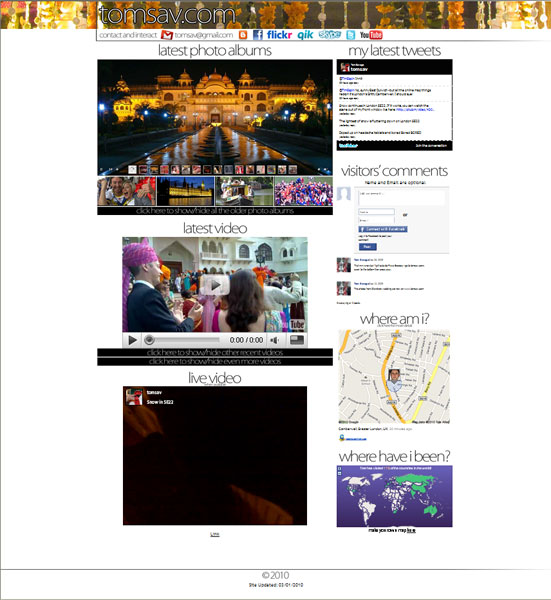
This section shows my email address, and provides links to other webpages of mine.
If you move your mouse over the logos, they show what my username on the relevant site is so you can find me. Alternatively, click the logo to be taken to my page on that site.
The sites are:
Blogger (not currently used); Facebook; Flickr (for photo sharing); Qik (for video sharing); Skype (for web phonecalls); Twitter; and You Tube.
main photo album
This shows photos from the most recently uploaded photo album. They scroll through automatically in a slideshow. The first slide will tell you what the album shows; if you miss it, wait a minute and it'll be around again.
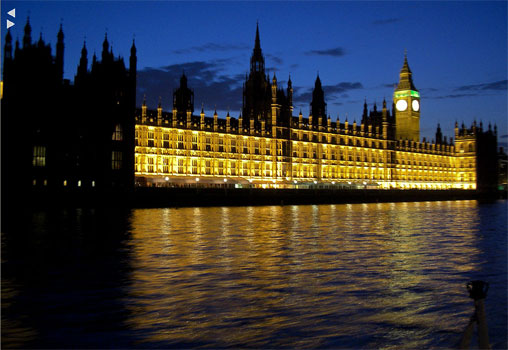
To view the album properly (this is just a preview) then click anywhere in the main picture to be taken to the album.
See How To Use The Photo Albums below for what to do next.
other recent photo albums
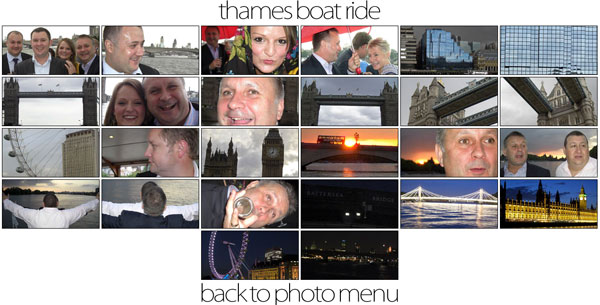
This section shows four more recently uploaded photo ablums. Place your mouse over the picture to see the title of the album. Click the picture to go to the album.
See How To Use The Photo Albums below for more info.
show/hide more information
To keep the homepage relatively tidy, not all the photo albums and videos are displayed when it first loads.
To show the hidden ones, click the relevant black strap. To hide them again when they are showing, click that strap again.
latest video
This section displays the latest featured video I've uploaded. The video doesn't automatically play, it just displays a freeze frame from the footage. To start it, click anywhere in the image.
The controls across the bottom are standard You Tube controls. In case you aren't familiar with them, this is what they do:
PLAY - Click this to start the video.
PAUSE - When the video is playing, PAUSE appears instead
of PLAY.
Click it to stop the video.
PROGRESS BAR - The dot moves along the bar to show how
much of the video you've watched. To rewind or fast forward, click on the
dot and drag it left or right along the bar. When you first press play,
the bar itself turns red as the video loads into your computer's memory.
If it's still grey, you may have pauses when you play the video; wait a
minute for the bar to turn red.
VOLUME - When you put your mouse over this icon, a volume
control appears. Slide the control up or down to increase or decrease the
volume of the video.
FULL SCREEN - Click this icon to show the video in full
screen (press Esc on your keyboard to get back to normal)
RELATED CONTENT - If you don't know what this does, you
don't need to worry about it.
live video
Once in a blue moon I will stream live video from my phone. It will automatically appear in this window if I'm doing it while you happen to be on my site.
If this video isn't moving, it means I'm not streaming anything. Instead, you can view the last video I did stream live. Click the green play button to start; the controls are similar to the You Tube ones.
my latest tweets
This section displays the last five messages I posted
on Twitter.
If a message starts with an @ sign (eg @tomsav) then it's
a reply to that user, so may not make sense taken out of context!
visitors' comments
This section is for visitors to the site to say just
how bloody wonderful it is.
Yes, I'm THAT needy.
(NB: Because the site isn't actually bloody wonderful, the comments box may not display if you're using a funky non-Internet Explorer browser.)
The top part is where you type your message, the bottom part displays previous messages.
If you DO have a Facebook login, if you click Connect With Facebook you can sign into your Facebook account and it puts your profile picture next to your comment using some kind of magic. You can also choose to have whatever you post displayed on your Facebook Wall.
If you DON'T have a Facebook login (or if you don't want to use it) you can still leave a message. You don't need to enter a name or email address, just leave those sections blank if you want.
Give it a go, if just to make me feel like I have visitors. Again, I'm THAT needy.
where am i?
This section uses data from my mobile phone to show where I am (or rather where my mobile is) at any particular time.
If I'm in this country it should stay updated unless my phone dies. If I'm abroad it may not be updated so frequently. At the bottom of the map it shows when it was last updated.
If you click the title Where Am I? then you go through to a more detailed page with bigger maps.
where have i been?
This is just a funky little gizmo from the site www.travbuddy.com that shows how much of the world I've visited. If you want to see how much of it YOU'VE seen, make your own map by clicking the link under my map.
|